How to list event on 10times, how to add an event
Adding an event on 10times is completely free of cost. However, before submitting your event it is important to review our event submission guidelines As we follow strict quality standards to ensure only relevant and high-quality events are listed on the platform.
How to get your event listed
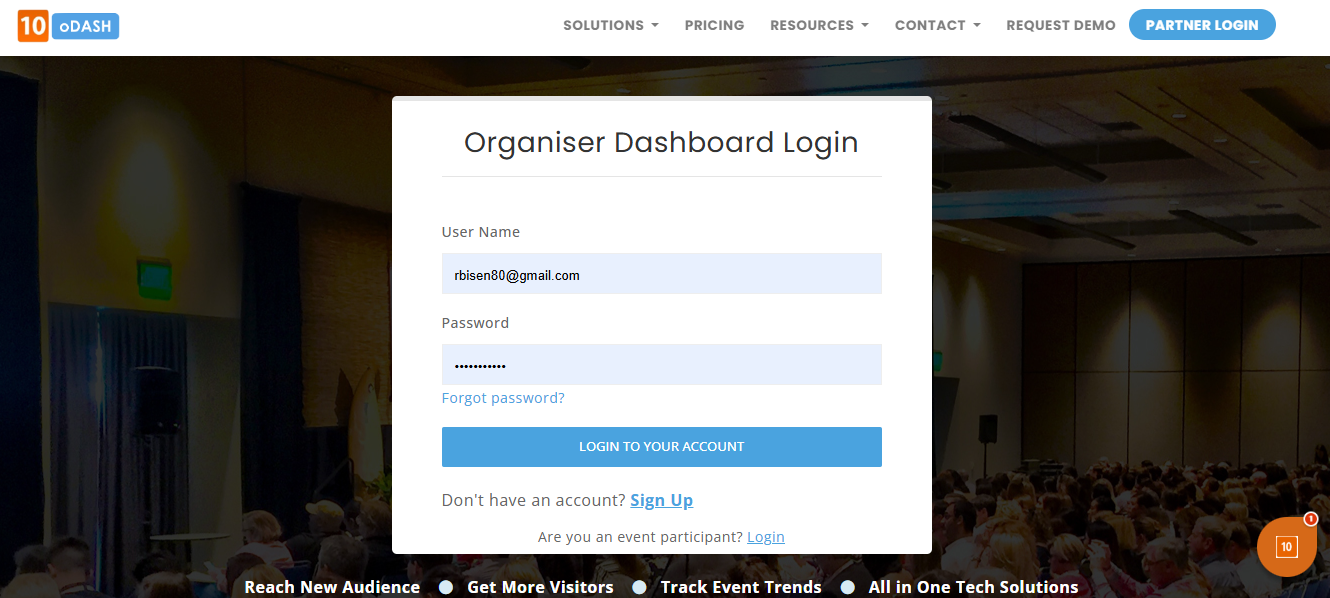
Step 1: Create/Login to Your Account
To get your event listed, start by visiting https://login.10times.com/. If you are a new user and listing an event for the first time, you will need to create your profile. It is recommended to use your business email ID for registration. In case you do not have one, you can proceed by selecting the option “I do not have a business email id.” Once registered, you will receive a verification email to reset your password. Please complete the verification to continue.
Step 2: Access the Organizer Dashboard
After logging into your organizer dashboard, click on the “Add Event” button located at the top right corner. This will open a form where you can enter your event’s basic information. At this stage, there are two simple ways to add your event on 10times.

Step 3: Add Event Details (Automatic or Manual)
The first method is automatic data fetching, which is the quickest and most convenient option. You can simply paste your event link, and the system will automatically fetch the event details from the provided source. By clicking on “Fetch Details,” most of the information will be populated for you
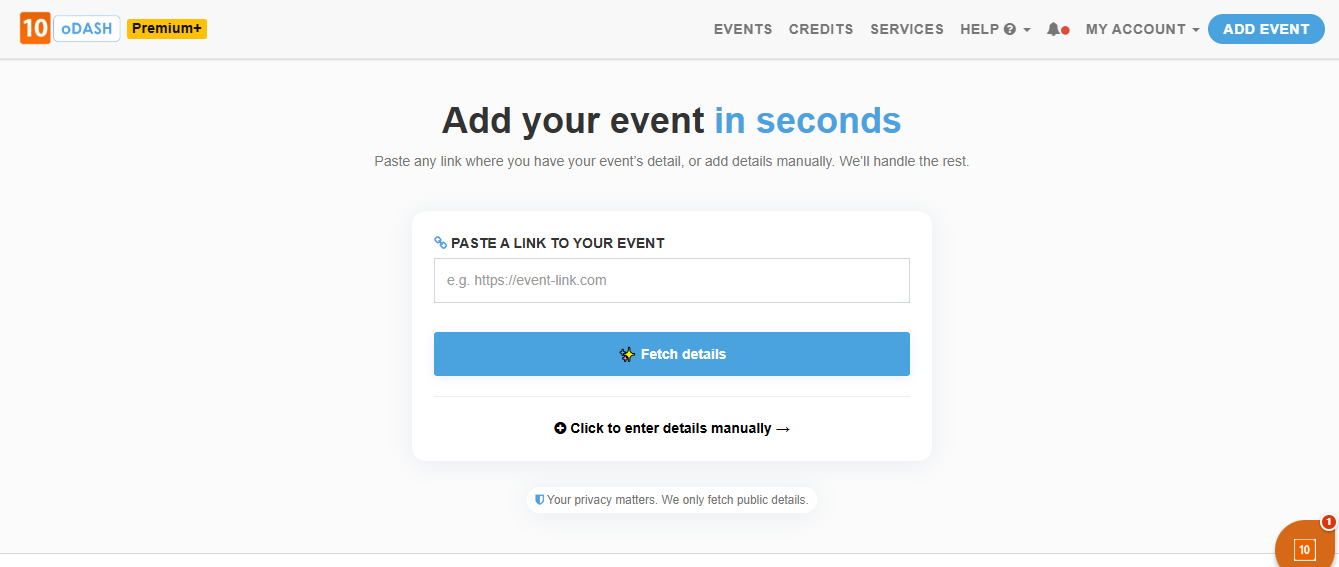
You can then review the fetched content and manually fill in any remaining or missing details.
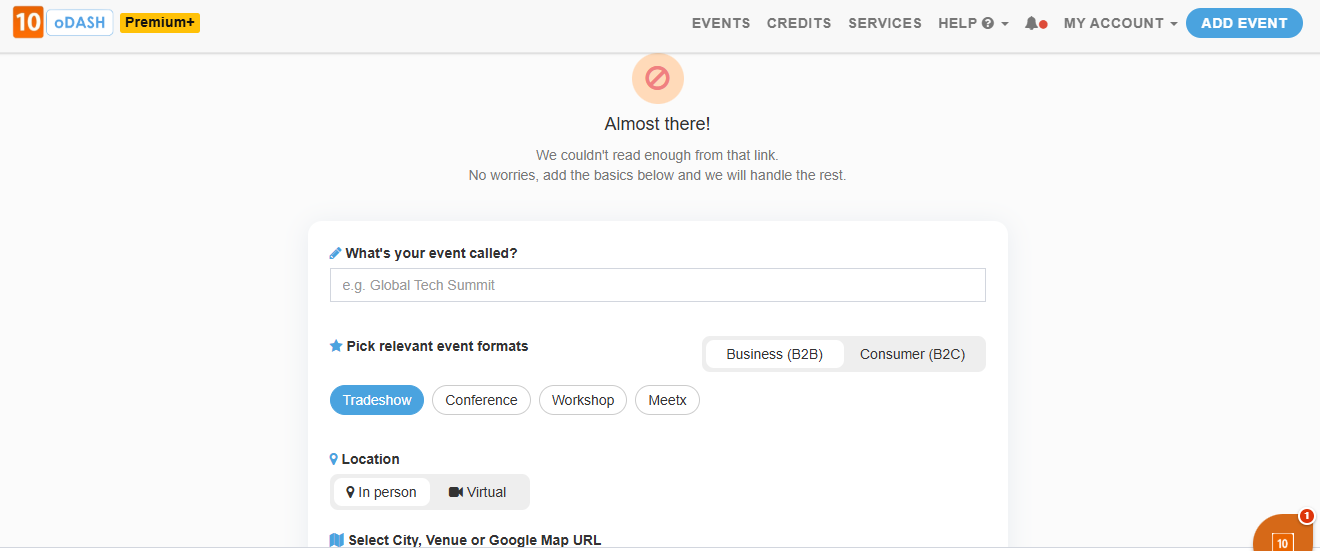
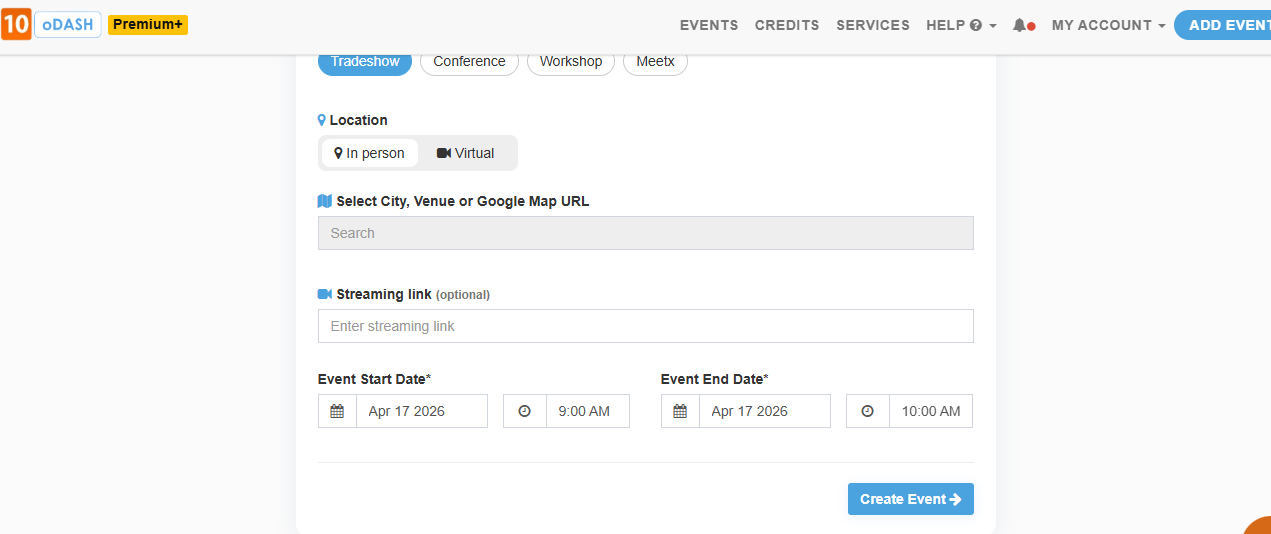
Alternatively, you can choose to add all the event details manually. In this case, ensure that all mandatory fields are carefully filled out with accurate and complete information.
Step 4: Complete Additional Event Information
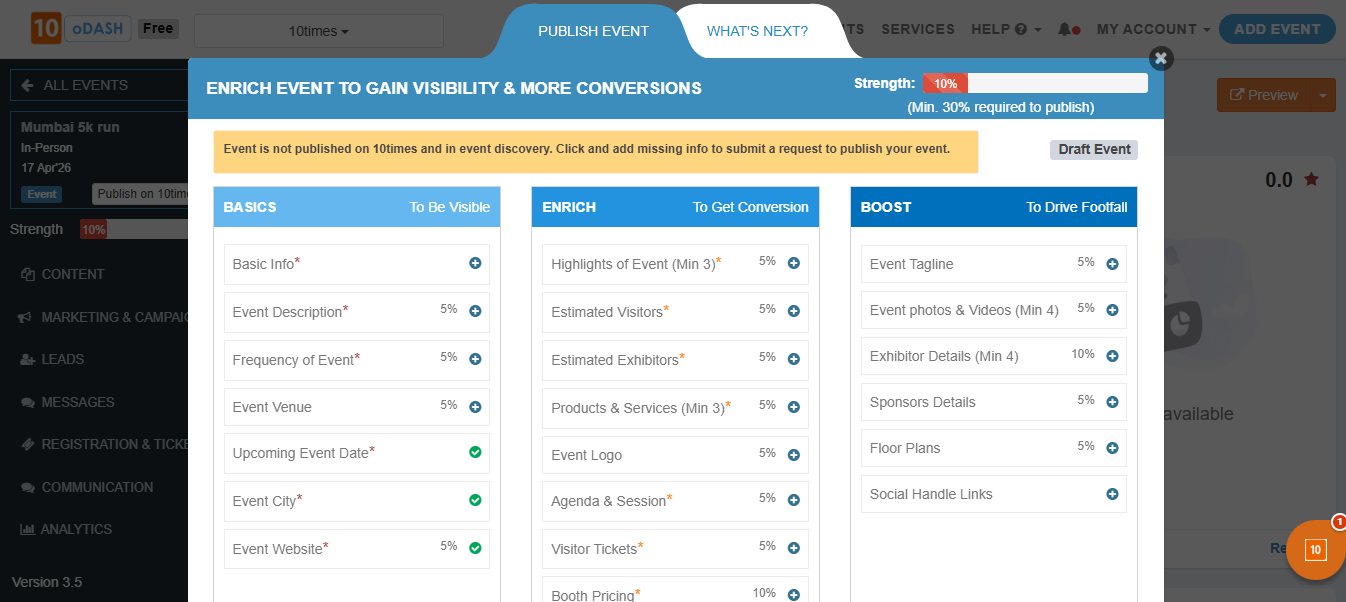
Once you submit the initial details, you will be directed to a page prompting you to complete any additional information that may have been skipped but is required to make the event eligible for publishing.
The system will clearly indicate the fields that need attention to proceed with the “Publish My Event” option.
Step 5: Submit for Approval
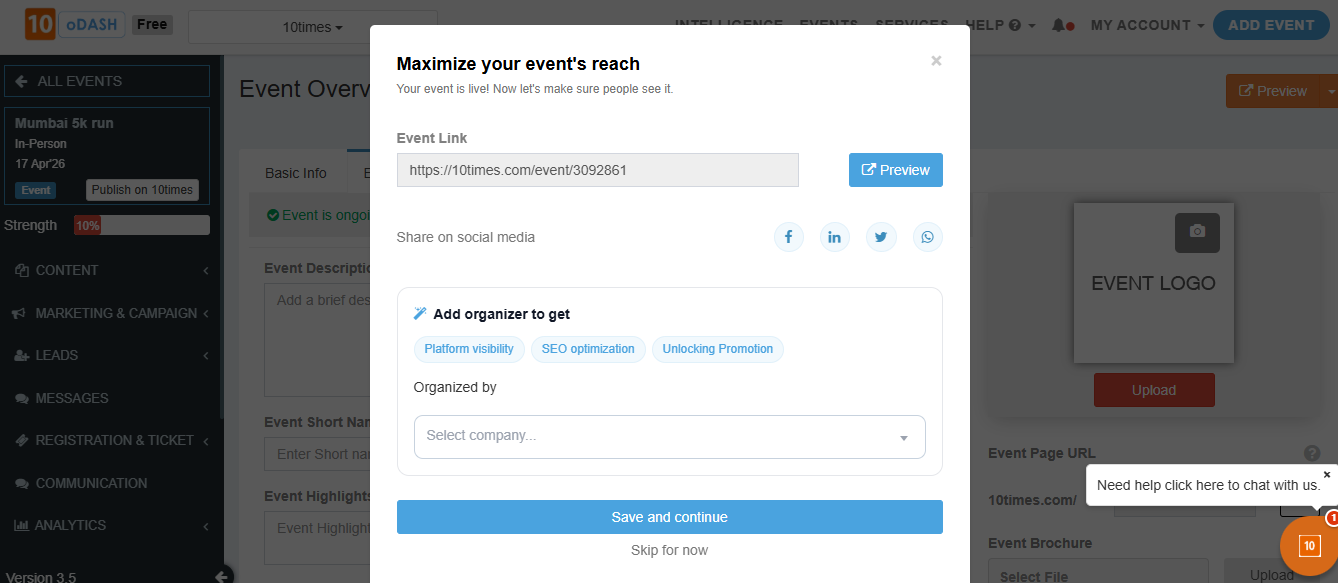
After completing the required details, submit the event for approval. It will initially be saved as a draft and sent to our Quality Check (QC) team for review.
Note:
It is recommended that you fill in all the fields and enrich event content up to 90%.
Though 30% Event Strength is mandatory for it to get approved
After submission, the event is reviewed by our Quality Check (QC) team, which may take up to 48 business hours. Once approved, your event will be visible under the “Upcoming Events” category. In case the event is rejected, it will remain in drafts with a “Pending Action” notification.
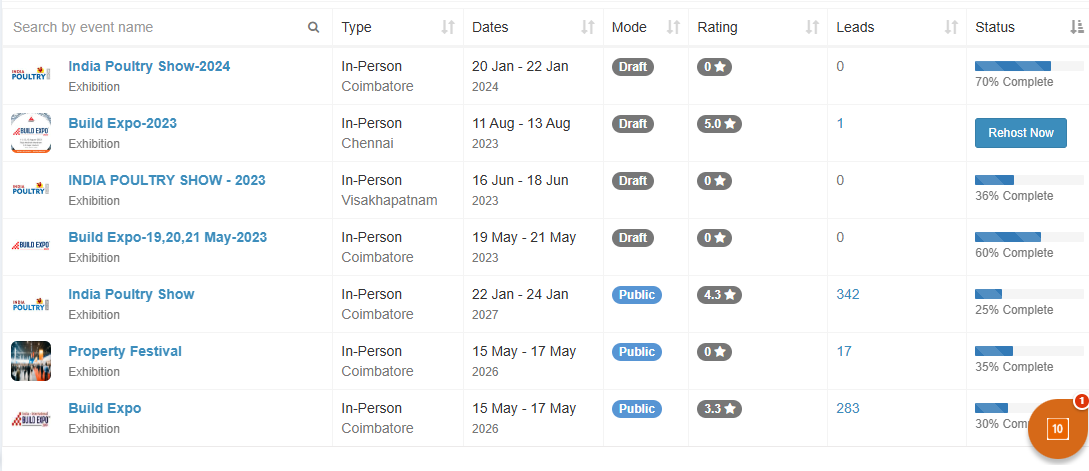
You can review the reason for rejection, make the necessary changes, and resubmit the event for approval.
Please Note:
The more detailed and accurate your event information is, the better its performance and visibility on the platform.
A system-generated email will be sent to notify you whether your event has been approved or rejected.
Avoid using numbers, editions, dates, years, or special characters in the event name.
Do not include words such as Bazaar, Sale, Holiday, Market, or Tour in the event title.
Do not add contact numbers, email IDs, or website links in the event description.
Ensure the event description is at least 250 characters long.
Was this article helpful?
That’s Great!
Thank you for your feedback
Sorry! We couldn't be helpful
Thank you for your feedback
Feedback sent
We appreciate your effort and will try to fix the article